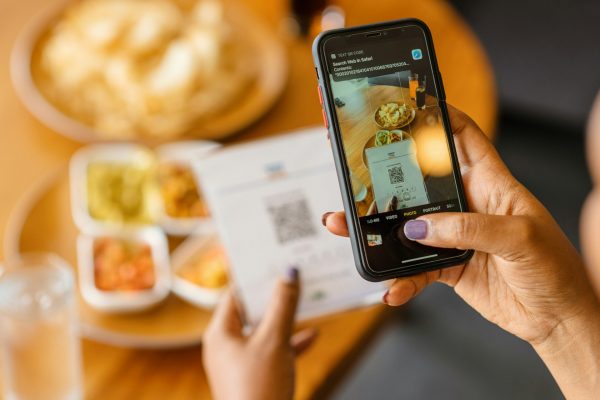
Not sure how to scan a hotel menu QR code? Here’s a quick step-by-step guide for Android and iPhone . No app download needed.

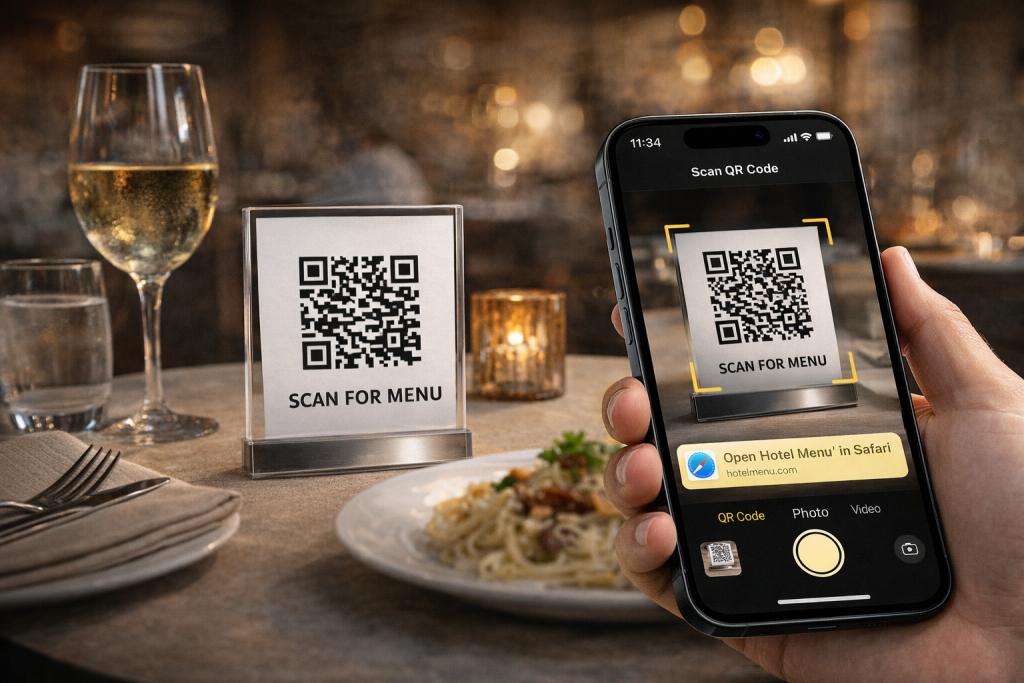
In today’s digital-first world, scanning a QR code to access a restaurant / hotel’s menu has become a standard and convenient way for guests to browse food and beverage options without needing a paper menu. This technology not only makes dining more efficient to get answers instantly without waiting for the server; it also supports contactless experiences something that’s increasingly expected by travellers and guests alike.
Whether you’re visiting a boutique resort or a luxury hotel restaurant, knowing how to scan a menu QR code can make your stay smoother and your meals quicker to order. Here’s a clear step-by-step guide for both Android and iPhone users.
Why Use QR Codes for Hotel Menus?
QR codes act as bridges between physical locations (like your hotel table) and online menus. When scanned, they instantly open the restaurant’s menu in your smartphone browser: no apps or extra downloads required in most cases. This makes ordering faster, reduces the need for physical menus, and enhances hygiene by minimizing contact.
QR code adoption in hospitality has grown dramatically. QR codes scanned globally in 2025 are 433% above 2021 levels, and hotels have followed suit. Scanning a menu QR code is now a standard expectation for most travellers.
How to Scan a Hotel Menu QR Code on Android
Most modern Android smartphones (running Android 8 or later) come with built-in QR scanning capability. There are two straightforward ways to scan:
1. Using the Camera App
Ensure your mobile data or Wi-Fi is turned on.
Open your camera app and point it at the QR code.
Wait a moment: your phone should recognise the code and show a link.
Tap the notification to open the menu in your browser.
2. Using Google Lens
If your camera doesn’t automatically scan the QR:
Open Google Assistant and tap the Lens icon.
Aim your phone’s camera at the QR code.
Tap the link that appears to access the digital menu.
Android tablets work the same way as Android phones. If your tablet’s camera app doesn’t recognise the QR code automatically, Google Lens is the most reliable fallback.
How to Scan a Hotel Menu QR Code on iPhone
For Apple users (iPhone running iOS 11 or later), scanning QR codes is just as easy:
1. Native Camera Method
Open the Camera app on your iPhone.
Center the QR code in your viewfinder.
A banner will pop up once the code is recognised : tap it to open the menu.
2. QR Code Reader in Control Center
If you prefer a dedicated QR tool:
Add the QR Code Reader to your Control Center via Settings.
Open it from the Control Center and point at the QR code.
Tap the screen notification to see your menu.
These same steps work identically on an iPad. The native Camera app on any iPad running iOS 11 or later will scan QR codes automatically: just hold the iPad steady over the code and tap the banner that appears.
What if My Phone Can’t Scan QR Codes?
Some older devices may not automatically detect QR codes with their default camera app. In this case, installing a QR scanner app from the Google Play Store or Apple App Store is a good solution. Popular options include scanner apps that are simple to use, store your scan history, and don’t require complicated settings.
Why Won't My Phone Scan the Hotel QR Code?
Even with a modern smartphone, QR scans sometimes fail. Here are the most common reasons and how to fix them on the spot.
The camera keeps losing focus Hold your phone 6–8 inches from the code and keep it still for 2–3 seconds. Most cameras need a moment to lock focus, especially in dim restaurant lighting. If autofocus keeps hunting, try tapping directly on the QR code on your screen.
The QR code is too small or too far away Hotel menus are sometimes placed as table tents or wall displays where the code is printed smaller than ideal. Move closer until the code fills at least a third of your viewfinder. If it still won’t scan, ask staff if there’s a larger version at the front desk or entrance.
Poor lighting in the dining area Low-lit hotel restaurants are a common scanning problem. Turn on your phone’s flashlight while using the camera on most Android and iPhone models this works alongside the QR scanner. Alternatively, try shielding the code from any glare if you’re in a brightly lit outdoor area.
No internet connection Scanning the QR code just opens a link but loading the menu requires an internet connection. Connect to the hotel’s Wi-Fi before scanning. If you’re unsure of the network name, most hotels display it on the table card alongside the QR code or at the front desk.
Your phone’s OS is too old Built-in QR scanning requires Android 8 or later, and iOS 11 or later. If your phone is older than this, download a free QR scanner app. For example, search “QR code reader” in the Google Play Store or Apple App Store. Most are free, require no sign-up, and work in seconds.
The QR code is damaged or faded A torn, wet, or sun-faded code may not scan reliably even with a good camera. If the code on your table looks damaged, check if another table nearby has a cleaner copy, or ask your server for a replacement card or the direct link to type in manually.
You’re using a browser with camera permissions blocked If you’re scanning through a browser’s built-in QR tool rather than your native camera app, make sure the browser has camera permissions enabled. Go to your phone’s Settings → Apps → [your browser] → Permissions → Camera, and make sure it’s turned on.
Pro Tips for Hotel Guests
- Connect to hotel Wi-Fi before you scan Scanning the code only takes a second, but loading the menu needs a live connection. Join the hotel’s Wi-Fi first — the network name is usually printed on the same card as the QR code.
- Hold your phone 6–8 inches from the code Too close and the camera can’t frame it. Too far and it loses detail. Six to eight inches is the sweet spot for most smartphone cameras.
- Position carefully in low light Hotel restaurants are often dimly lit. If your scan keeps failing, turn on your phone’s flashlight while pointing the camera at the code: it works on both Android and iPhone without needing a separate app.
- Only scan QR codes on official hotel signage Stick to codes on printed table cards, menus, or wall displays provided by the hotel. Avoid scanning codes from handwritten notes or unofficial-looking printouts if something looks out of place, ask a staff member before scanning.
- No luck? Ask for the direct link Every QR code is just a shortcut to a URL. If scanning isn’t working on your device, ask your server for the direct web address — you can type it into your browser and get to the same menu in seconds.
- Works on tablets too If you’re travelling with an iPad or Android tablet, the same steps apply. The camera app on most modern tablets handles QR codes natively: no extra app needed.
Most modern hotel QR menus are AI-powered and load instantly once you’re connected: here’s what that experience looks like at restaurants in NYC
Scanning a hotel menu QR code can make dining quicker, easier, and more contactless. Whether you’re using an Android device or an iPhone, the steps are intuitive and don’t require technical expertise. The technology has become a staple in modern hospitality, helping guests explore menus right from their smartphones with minimal effort.
If you’re a hotel or restaurant looking to set up a QR menu for your guests, see how Chocochip’s smart menu works.